Authorising a System
One signature covers one system. Your licence agreement requires your written authority before Demiton reads a system, and the Authorisation tab on each system’s page produces that document from the system’s live configuration: the credential type, the read or write scope, the registers it feeds and the security roles that can read them.
The person signing decides which registers Demiton may harvest. Bridgeworks Fleet, the example below, can feed eight registers. Seven are about vehicles. The eighth is an employee list, so its signatory can leave it out, and Demiton then stops fetching it.
Who does what
Section titled “Who does what”| Action | Permission | Held by default by |
|---|---|---|
| Generate a draft, or attach a signed copy | connectors:manage | Administrator, Project manager |
| Sign a draft | connectors:authorise_access | Administrator, Director |
| Read the tab and download the document | Either of the above | The roles above |
So a project manager can prepare the document and a director can sign it, without the director needing rights to change the system. The tab does not appear for anyone without one of these permissions, or for a system Demiton manages for you.
How a version moves
Section titled “How a version moves”Read left to right. Each arrow names what moves the version on.
generate sign next version signed no document ────────► Awaiting ─────────────► Signed ───────────────────────► Superseded signature (in force) (kept, downloadable) authorises nothing its registers are the only ones Demiton may harvestEach version freezes what was true when it was generated, so a register added next week cannot change what was signed last week. No version is ever deleted.
Sign your first authorisation
Section titled “Sign your first authorisation”-
Open the Authorisation tab
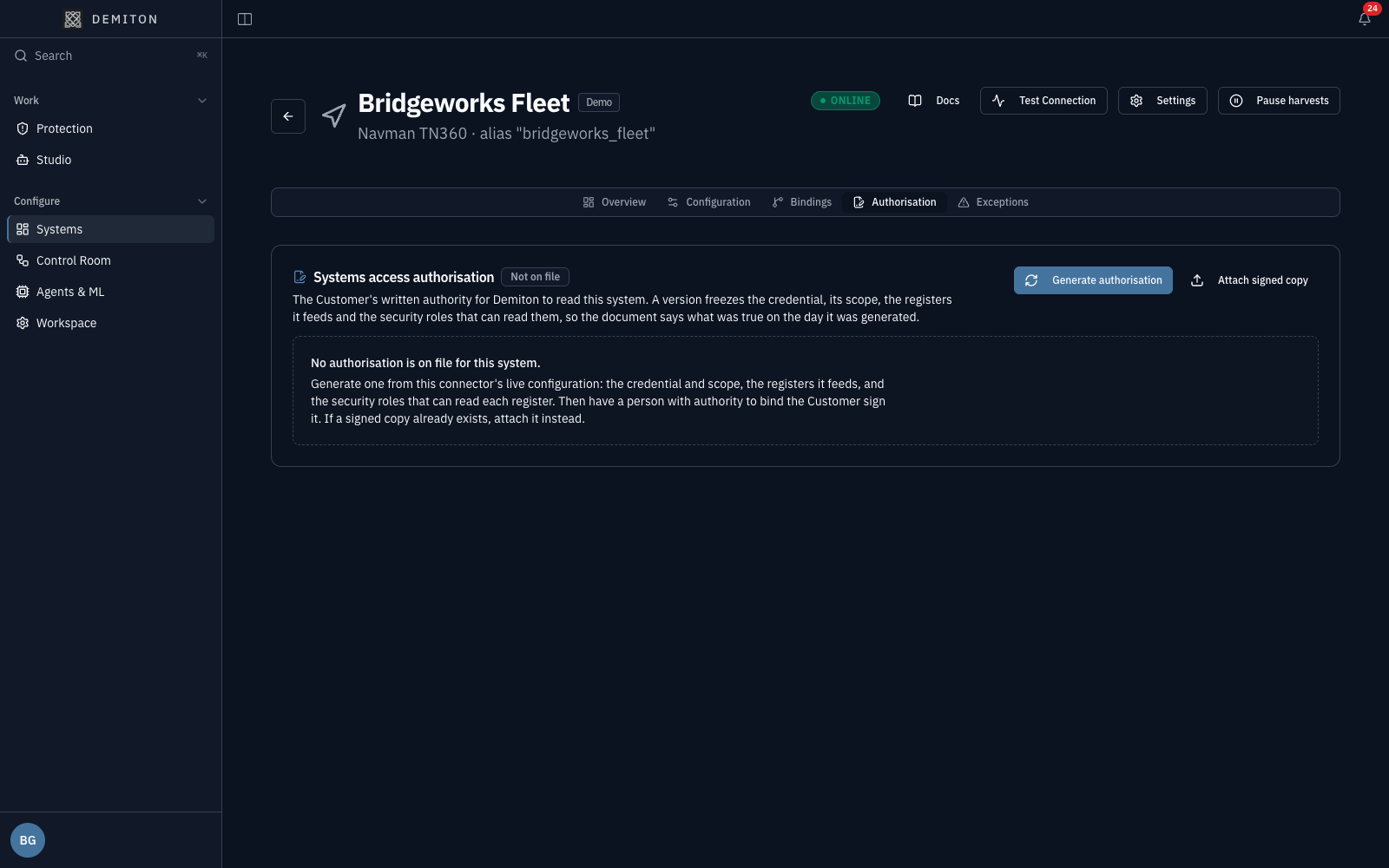
Section titled “Open the Authorisation tab”Choose Systems under Configure in the sidebar, open the system, then choose Authorisation. With nothing on file, the tab offers Generate authorisation and Attach signed copy.
-
Choose the registers
Section titled “Choose the registers”Click Generate authorisation. Every register the system feeds is listed with its read scope, and all are ticked on a first version. Untick any you do not want harvested. Here
employee_listis left out, which leaves 7 of 8 approved. The document records what was left out.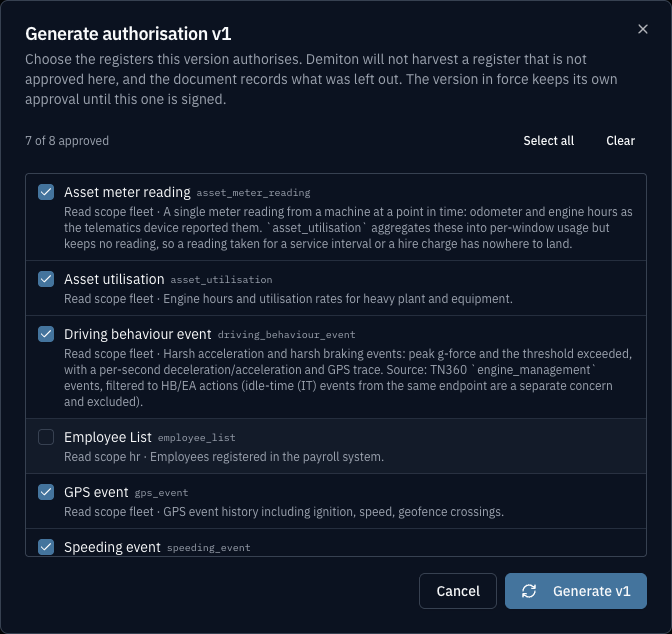
If the system has no enabled register bindings, there is nothing to authorise, and generating fails until you add one.
-
Read the draft
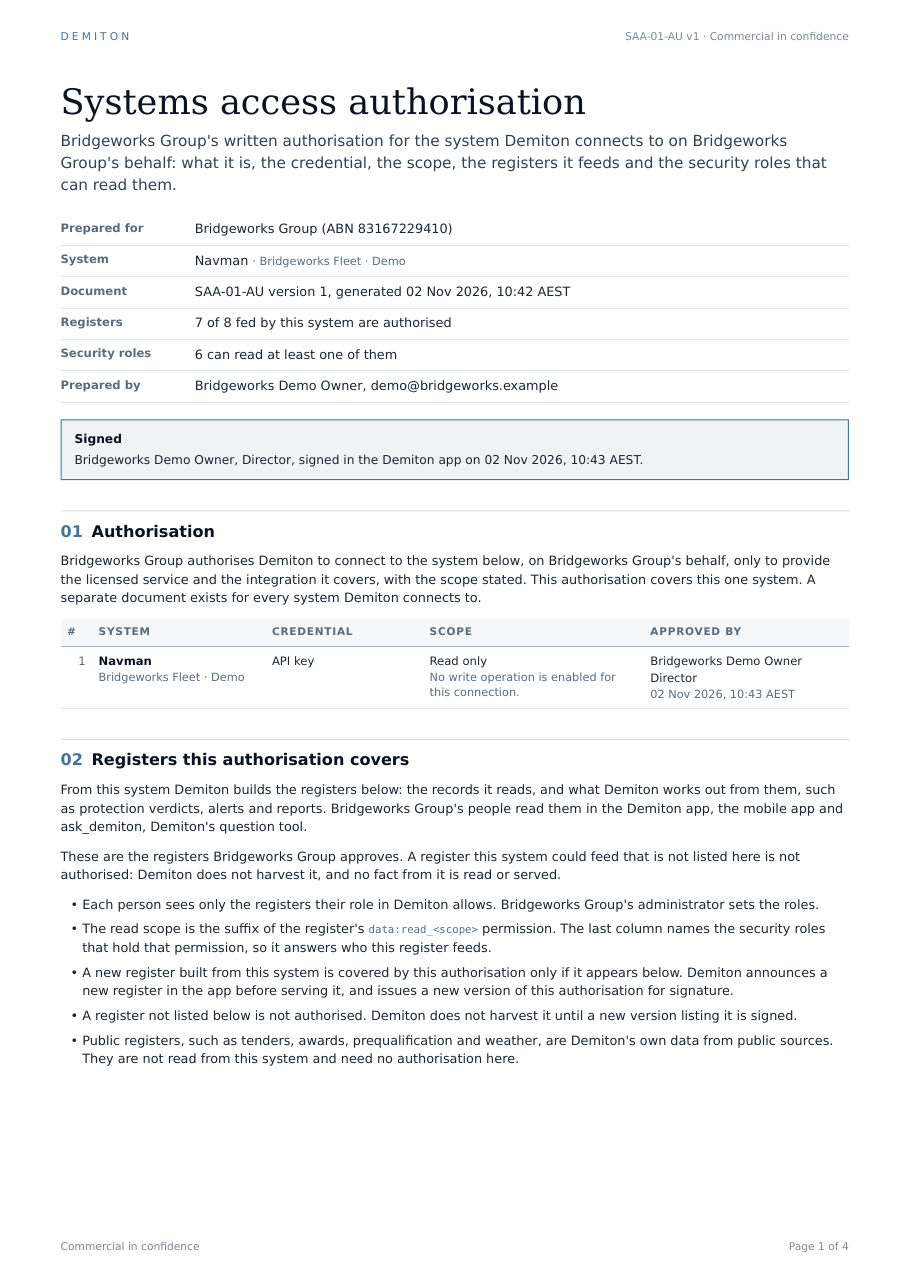
Section titled “Read the draft”Click Generate v1. The tab now shows Awaiting signature, the system, credential type, scope and count, then each approved register beside the security roles that can read it. Download PDF gives you the document itself. A draft authorises nothing.
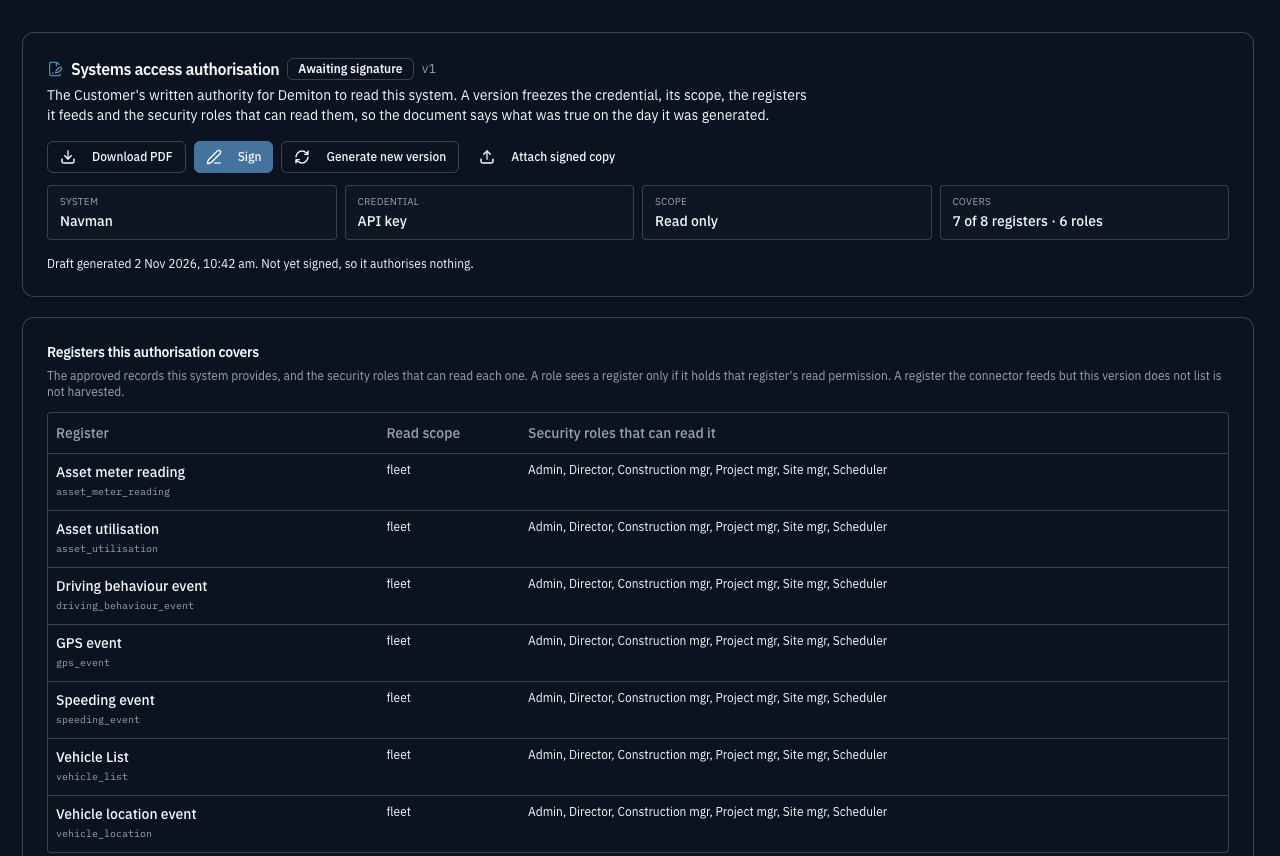
Check the roles column. It answers who at your company this system’s data reaches. To change it, change the roles in your workspace, not the document.
-
Sign it
Section titled “Sign it”Whoever holds the signing permission clicks Sign, enters their full name and title, and confirms they can bind your company. Demiton records the name, title, time and a hash of that exact version.
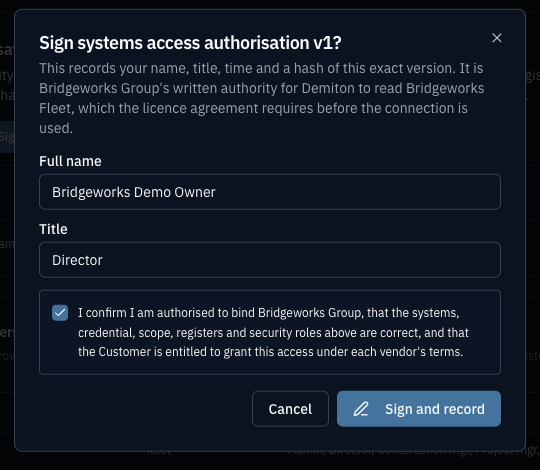
The tab turns to Signed, naming who signed and when.
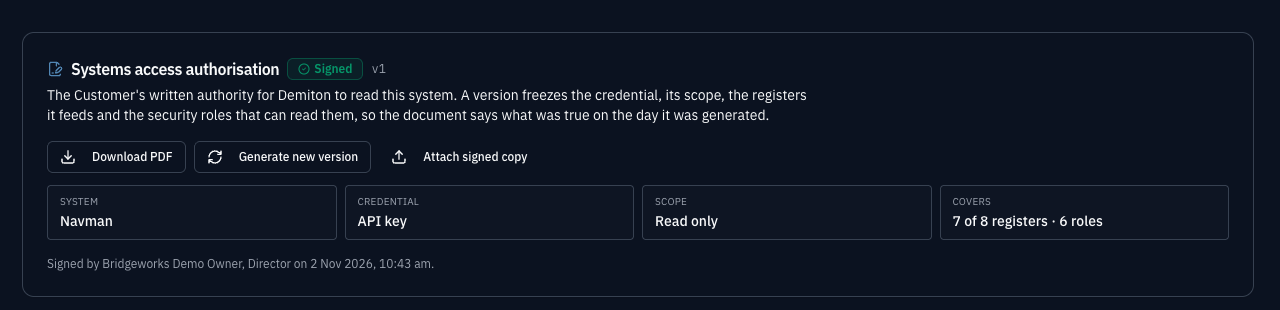
The signed PDF carries the same facts, the signature, your confirmations and how Demiton handles the credential. It runs to a few pages, one document per system.
What signing changes
Section titled “What signing changes”Once a system has a signed version, its approved registers are the only ones Demiton fetches from that system. The check runs before any credential is read, so a read of an unapproved register never reaches the vendor. The harvest is recorded as skipped, and the reason names the registers the authorisation does not cover.
Signing controls harvesting. It does not change who can read a register: that comes from the read permissions on each person’s role, and the document reports them.
When the system changes
Section titled “When the system changes”The tab compares the live configuration with the version in force, and shows a warning when they differ. It names what changed:
| What changed | What happens until a new version is signed |
|---|---|
| A register was added | It is not harvested |
| A register was removed | It stays listed in the signed version, and the binding is gone |
| A security role gained or lost read access | Harvesting continues. The signed document no longer describes who can read |
| The credential or scope changed | Harvesting continues. The signed document no longer describes the access |
| The system’s name, type or environment changed | Harvesting continues. The signed document no longer describes the system |
To bring it back in line, click Generate new version, choose the registers and sign. The version in force keeps its approval until then, and signing supersedes it.
A draft has to match the system too. If the system changes after a draft is generated, the draft can no longer be signed and has to be generated again. Generating a new draft also retires any draft already open, so only one version awaits a signature at a time.
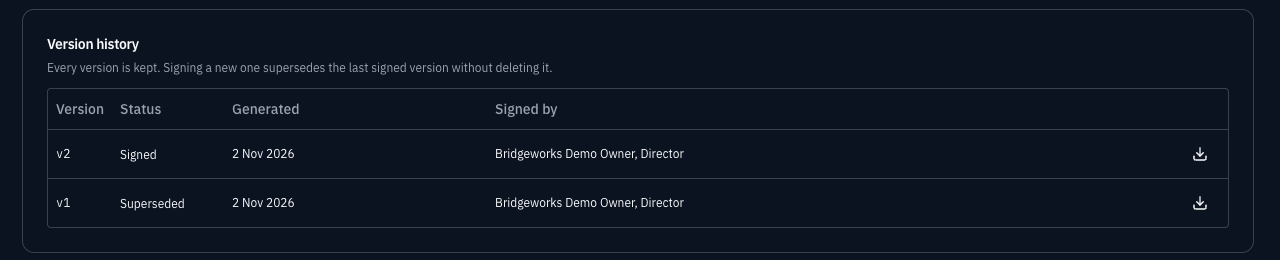
The Version history table keeps every version, with who signed it and a download.
If you already signed outside Demiton
Section titled “If you already signed outside Demiton”Click Attach signed copy to file a consolidated agreement signed on paper or in another e-sign tool. You supply a PDF of up to 10 MB, the date on the signature page, the signatory’s name and title, and optionally why it is attached. Demiton serves that file unchanged.
An attached copy goes straight to signed, and it approves every register the system feeds at that moment. To leave a register out, generate and sign in the app instead. Attaching needs connectors:manage, not the signing permission, so your own process should confirm the copy is genuine.
Revoking an authorisation
Section titled “Revoking an authorisation”You can revoke the authorisation for a system at any time, by disconnecting the system in the app or by emailing support@demiton.io. The protections built on its registers pause and say so. Disconnecting stops new facts arriving, and does not delete the facts the system already landed.
To stop harvesting for a while without revoking anything, pause the system instead.
Next steps
Section titled “Next steps”- Securing Azure - limit what the credential itself can reach
- Pausing a system’s harvests - stop one system’s harvests, with a reason everyone reading its facts can see
- Security Overview - how Demiton enforces identity-bound access across every connector
Talk to the team
Tell us what you run - your ERP, field, payroll and document systems - and we will show you the registers Demiton would fill from them, on your data, in a 30-minute call.